How to Restore
How to restore from a backup
This guide walks you through how to restore an individual theme file. But the same principle works for restoring any records: products, collections, etc.
Step 1: Launch the app
Launch the app from your Shopify admin panel.
Once inside, navigate to the Backup History section.
Here, you'll see a list of previous backups, organized by date.
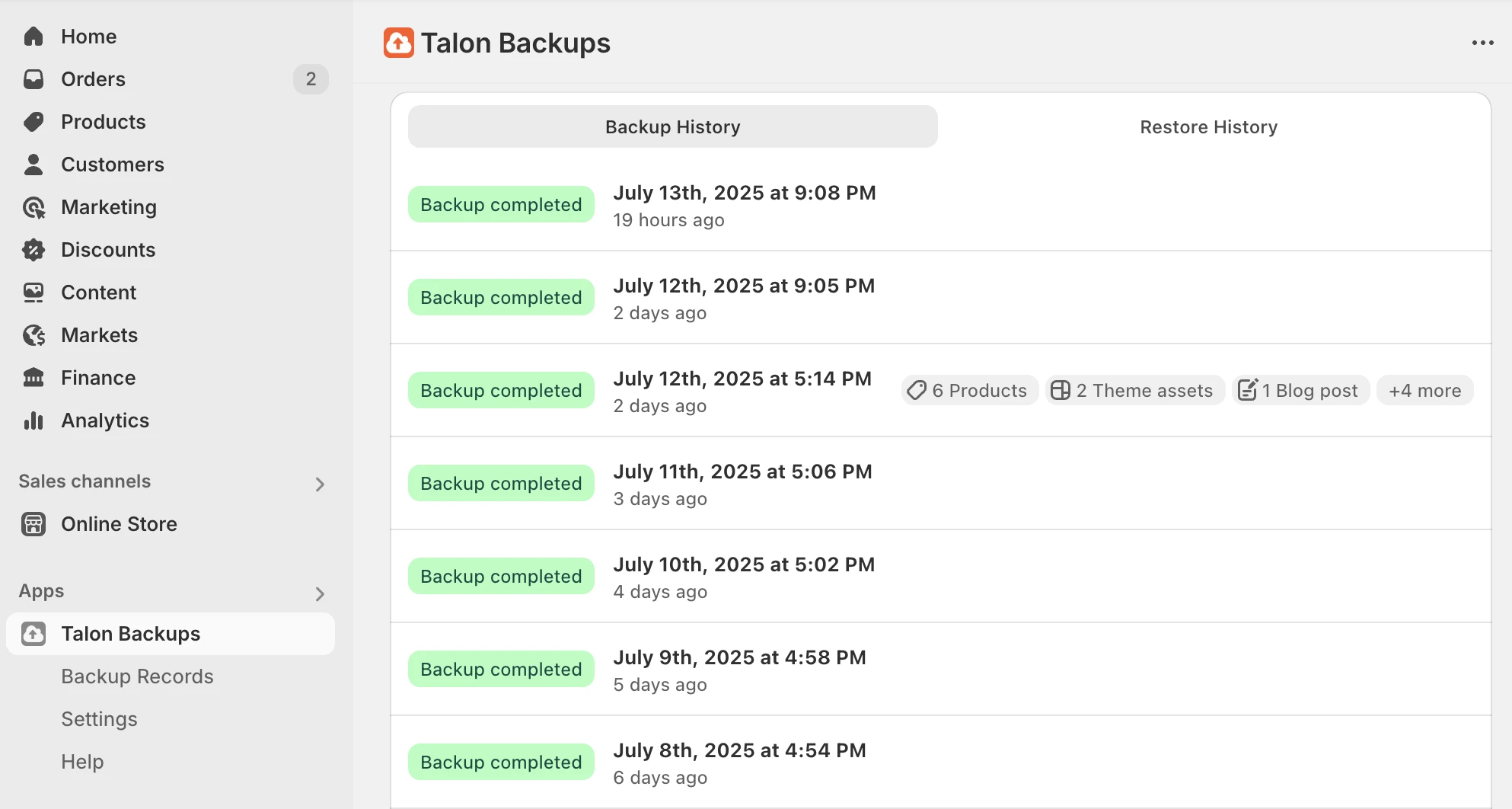
Select a backup from the list.
Click on the backup to open it.
You'll see a detailed summary of which products or files were created or deleted.
Step 2: Go to Backup records
In the backup menu on the left, go to Backup records.
Choose what kind of records you want to restore.
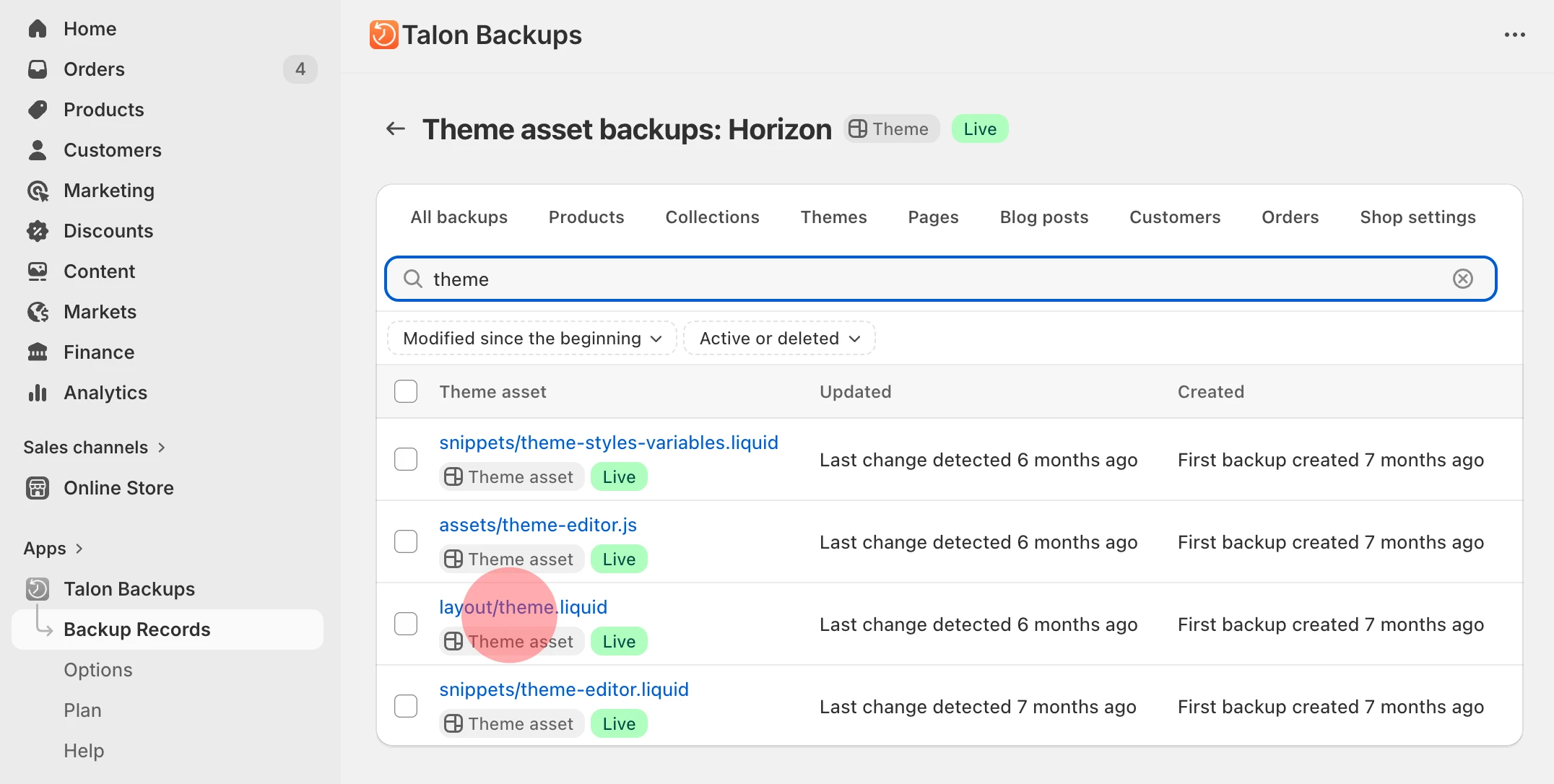
In this tutorial, we restore theme.liquid, so we
choose the Themes tab.
Choose a theme you want to restore.
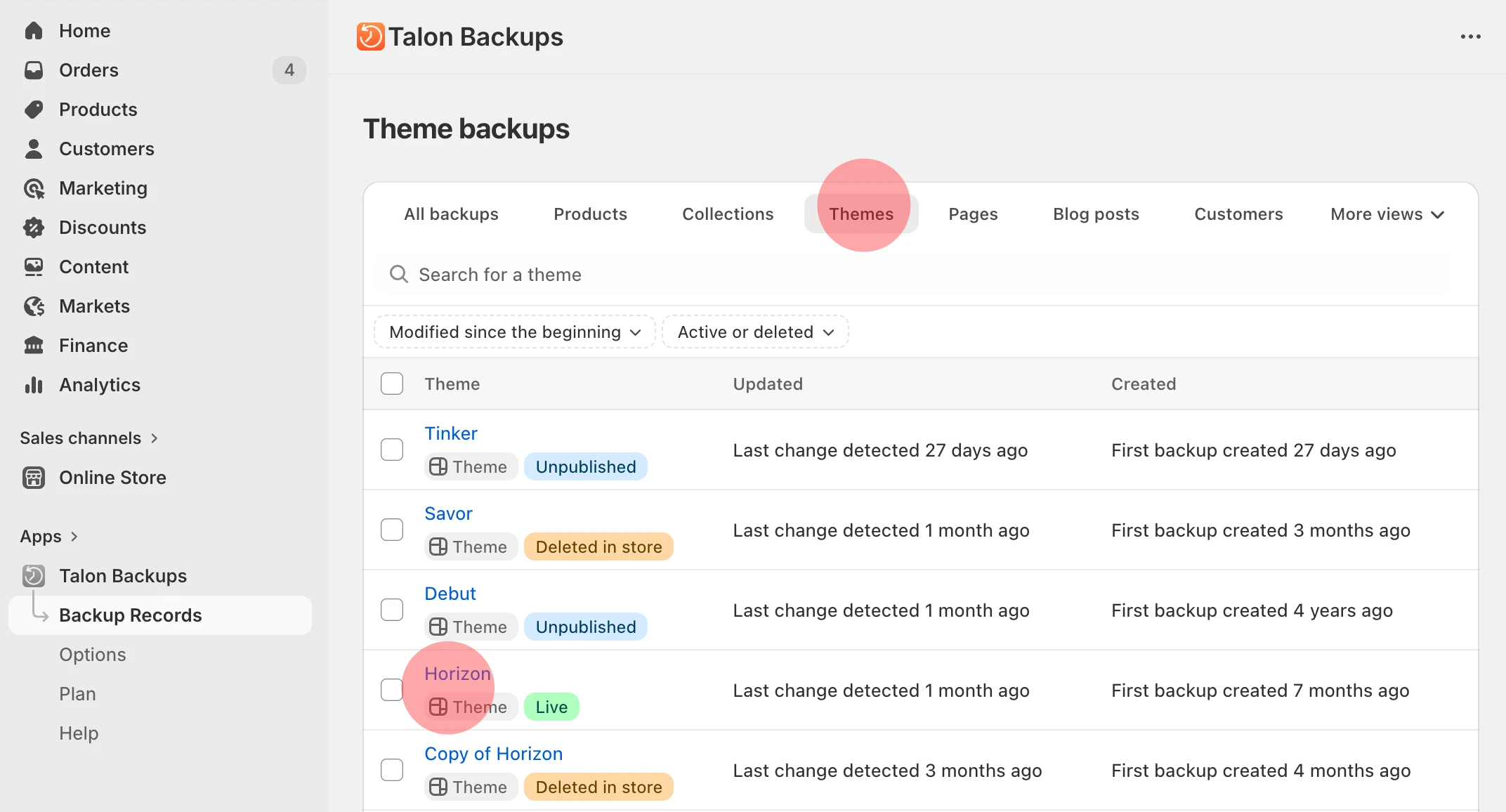
Locate theme.liquid (or any other file you want to restore).
Step 3: Restore the file
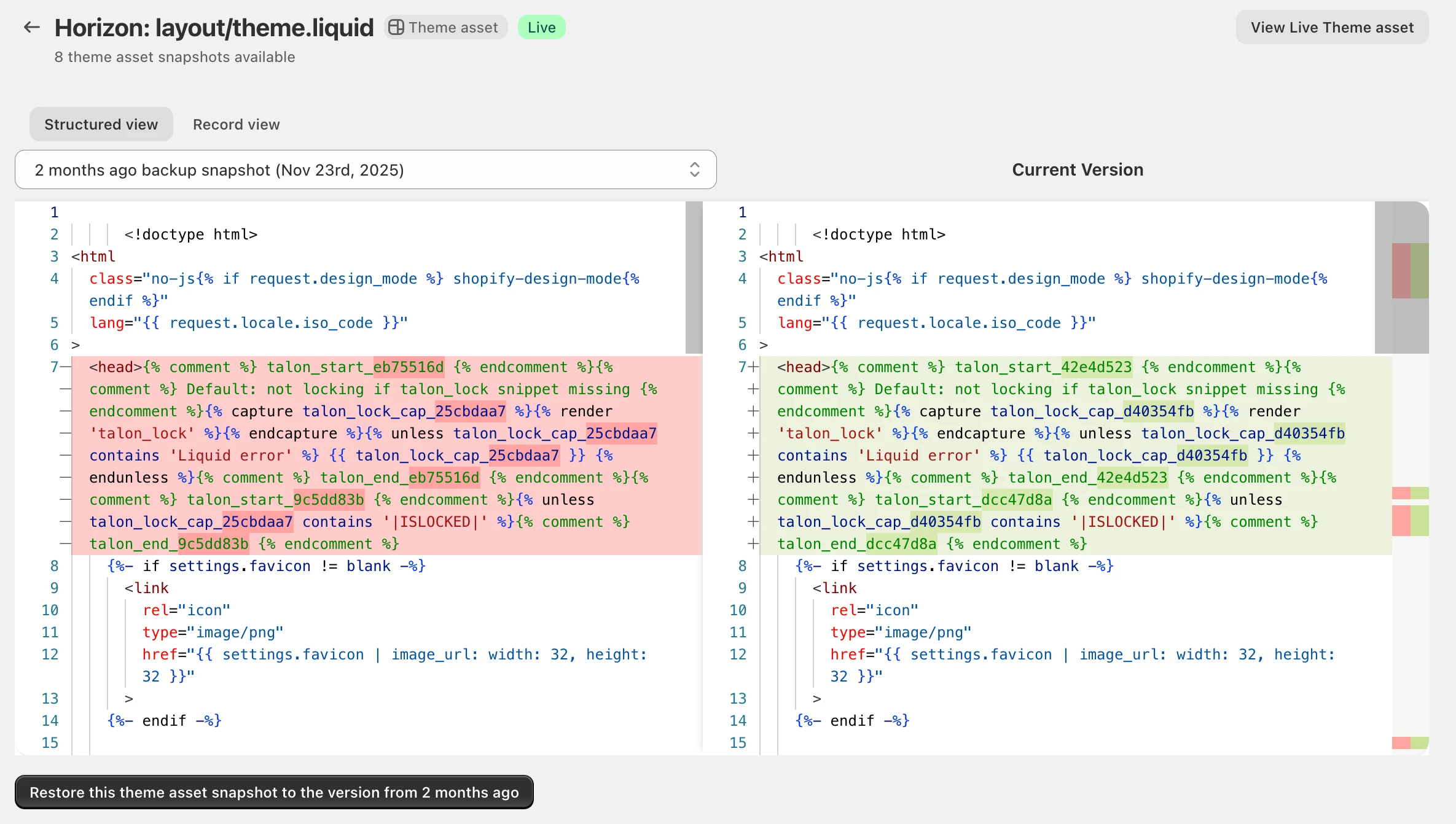
At the top, you'll see a change history for this file.
Click on the version you want to restore.
Review the changes to confirm this is the correct version.
Click the Restore this theme asset snapshot button at the bottom to revert only this file to the selected version.
How to restore in bulk
This guide walks you through how to restore multiple files at once.
Step 1: Launch the app
Launch the app from your Shopify admin panel.
In the backup menu on the left, go to Backup records.
Select the type of records you want to restore. In this tutorial, we restore Products.
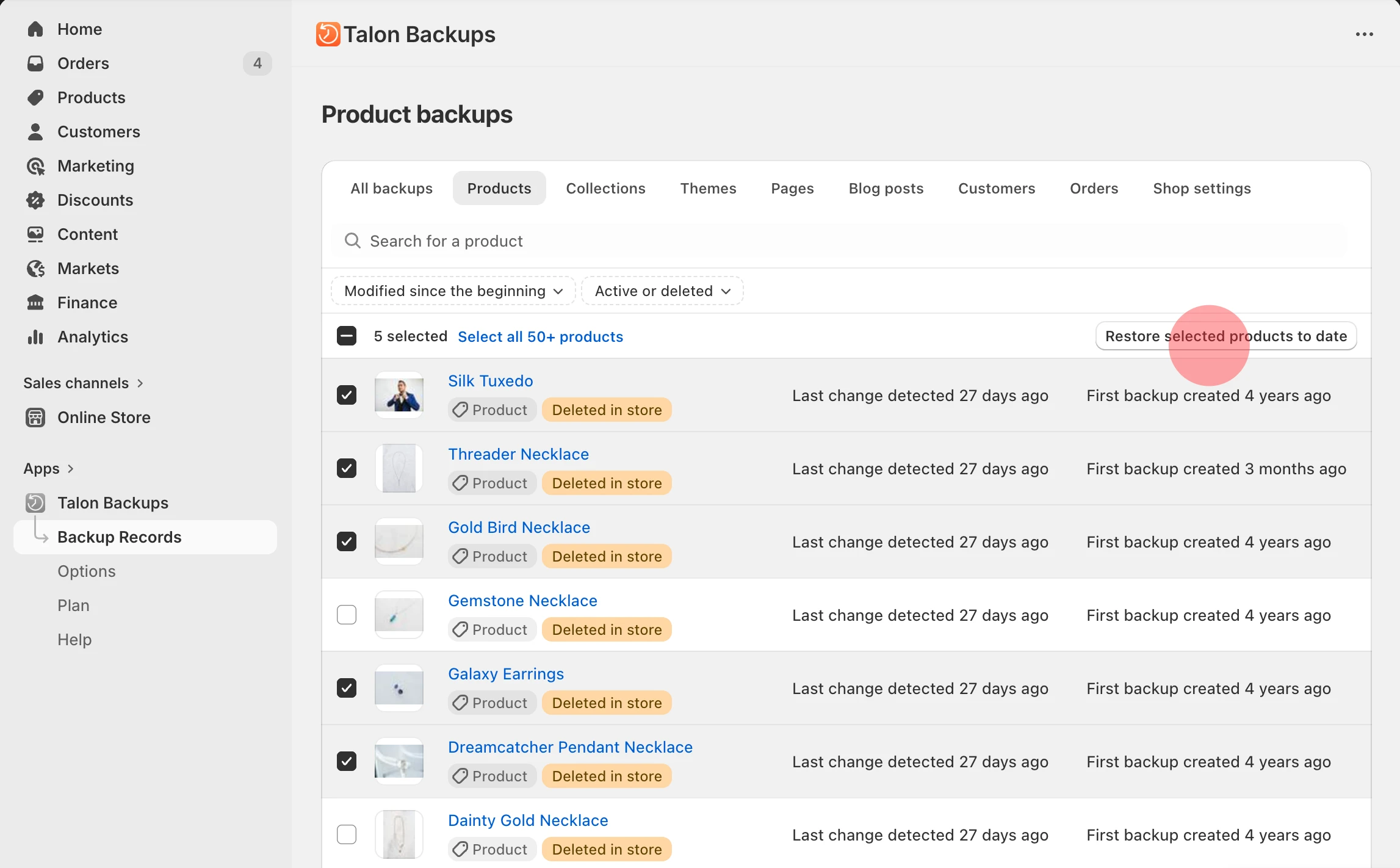
Step 2: Restore in bulk
You'll see a list of all products that were changed, created, or deleted.
Select products that you want to restore or click Select all to restore all products.
Click Restore selected products to date and select the date you want to restore to. Click Restore products to before the chosen date to confirm. The app will restore all selected products to their state from the chosen date.
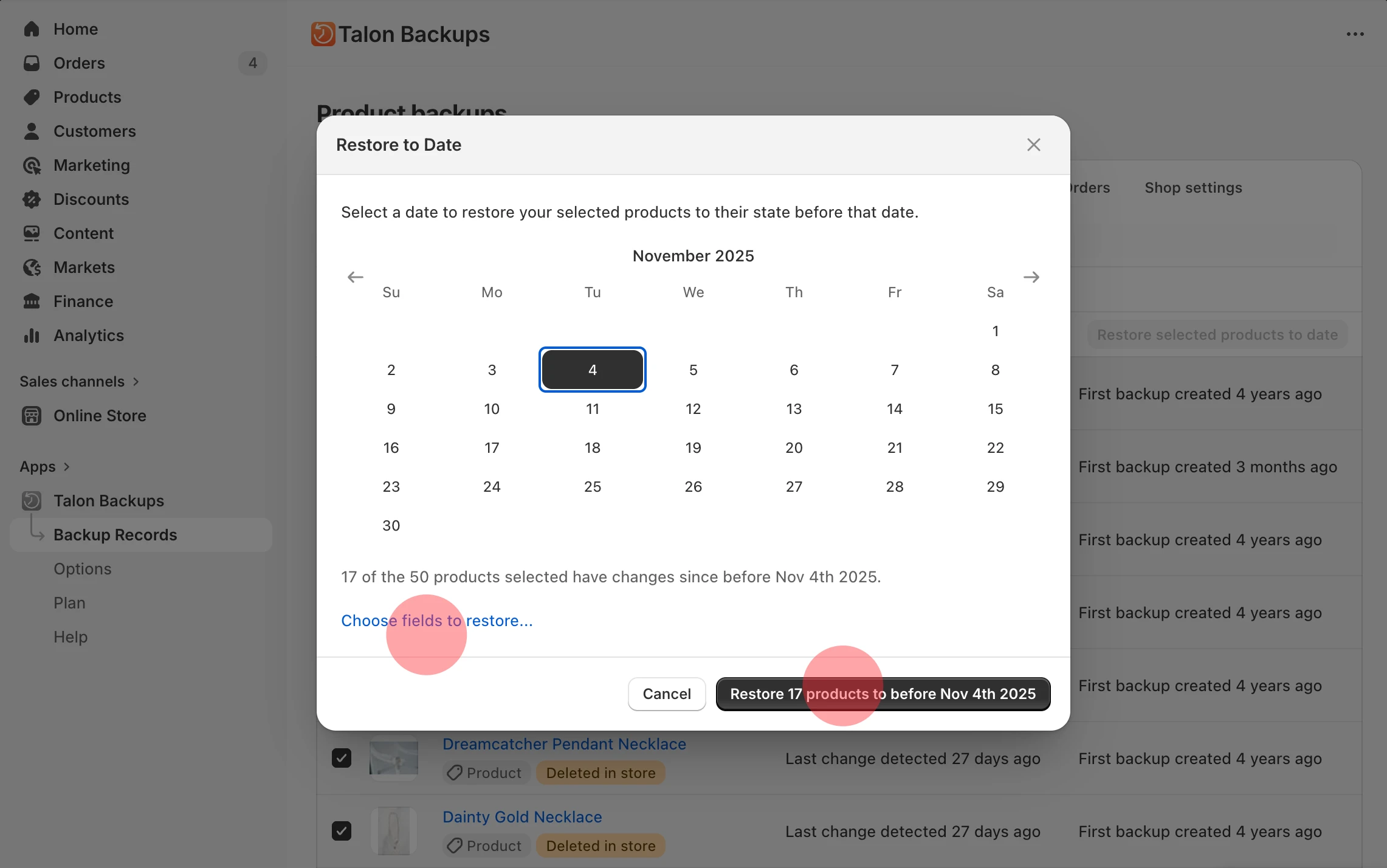
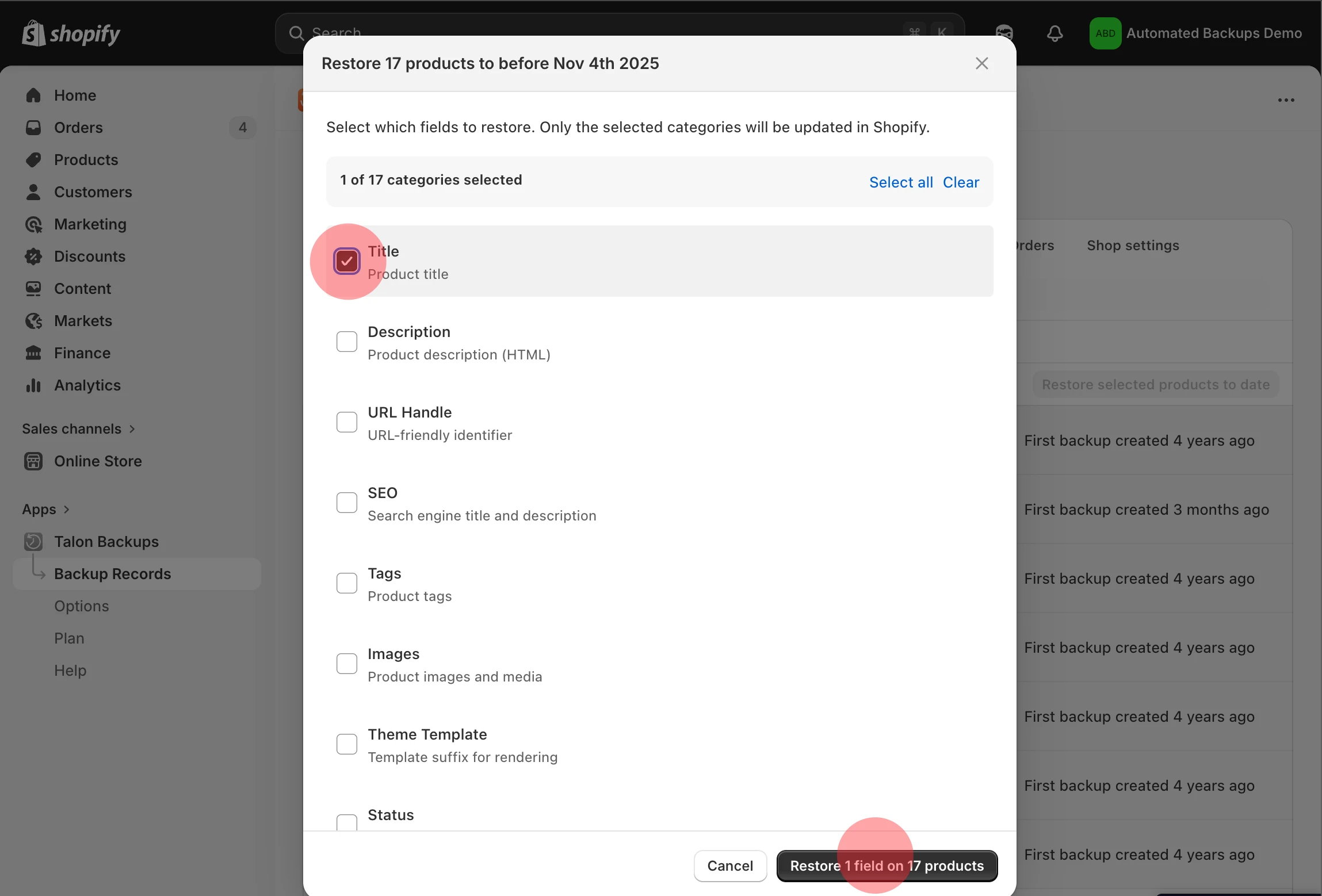
Note: You can also choose specific fields to restore, for example, only the title and price.
Note: Each record can be reviewed in detail before it is restored.
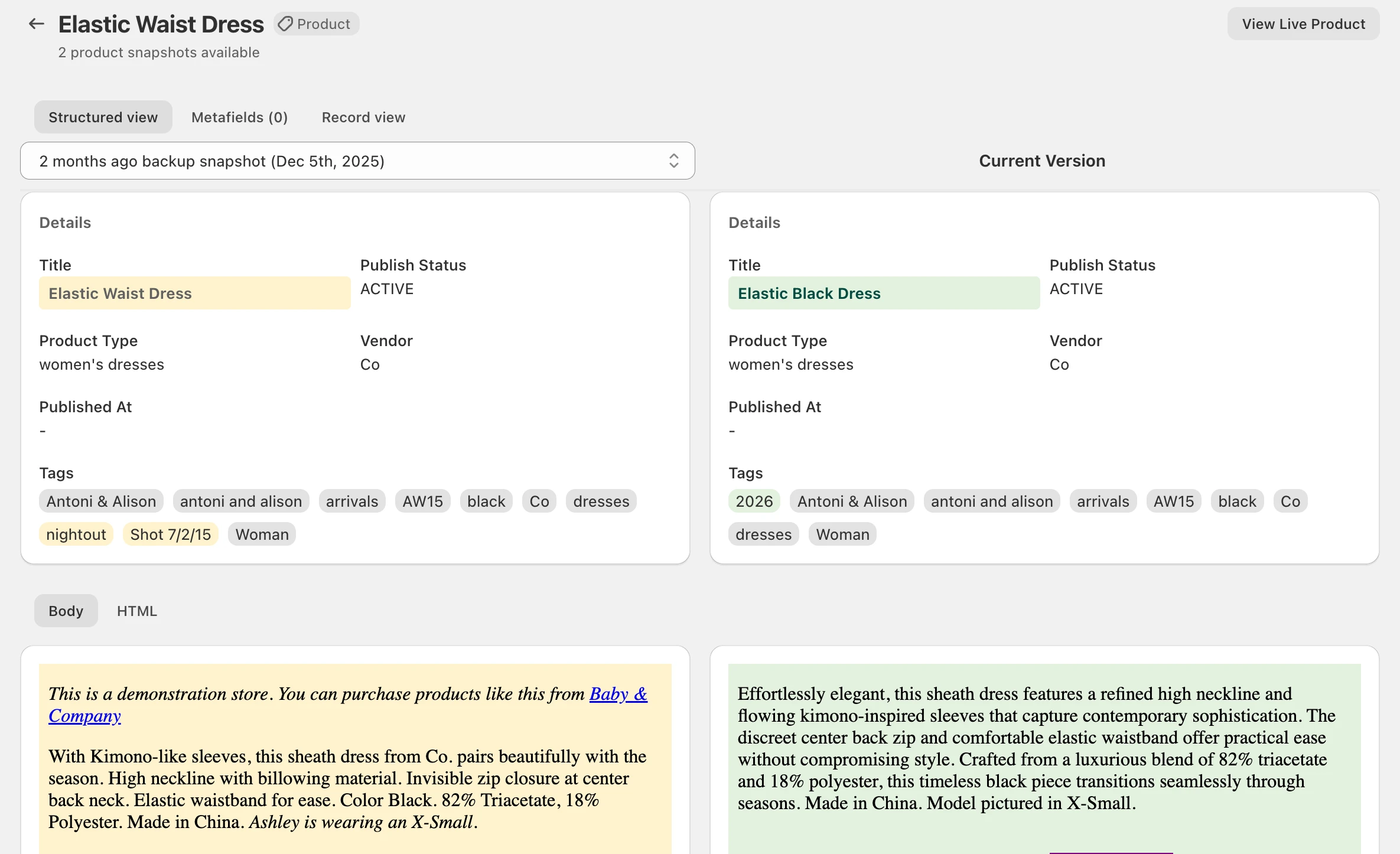
You can restore a single record or multiple records, depending on your needs.
Do I Need to Backup First?
Backups run automatically every 24 hours.
However, if the changes you want to revert happened after that backup, you'll need to run a manual backup first.
The app needs to know what changed. It can only restore data if it has a record of those changes - and that record comes from a backup.
So, before you restore, check when the last backup was made.
If the unwanted changes happened before the last backup, then you're all set - you can restore right away without needing to back up again.
If the changes happened after that last backup, run a manual backup first.
That might seem odd - backing up a broken store - but it's necessary so the app can detect the current state and know what to reverse.
Don't worry: this won't overwrite anything. The manual backup just creates a new, separate snapshot. It just gives the app a full picture of what's changed.
Need additional help? Have a question? Write to us at [email protected]